Below you will find pages that utilize the taxonomy term “MacOS”
Safely Unmounting Unresponsive iOS Simulator Disk Images on macOS
Issue Description
After use in Xcode, the iOS simulator on macOS occasionally leaves behind mounted disk images that become unresponsive and cannot be unmounted through standard methods. This can lead to cluttered disk space and potential conflicts with future simulator sessions.
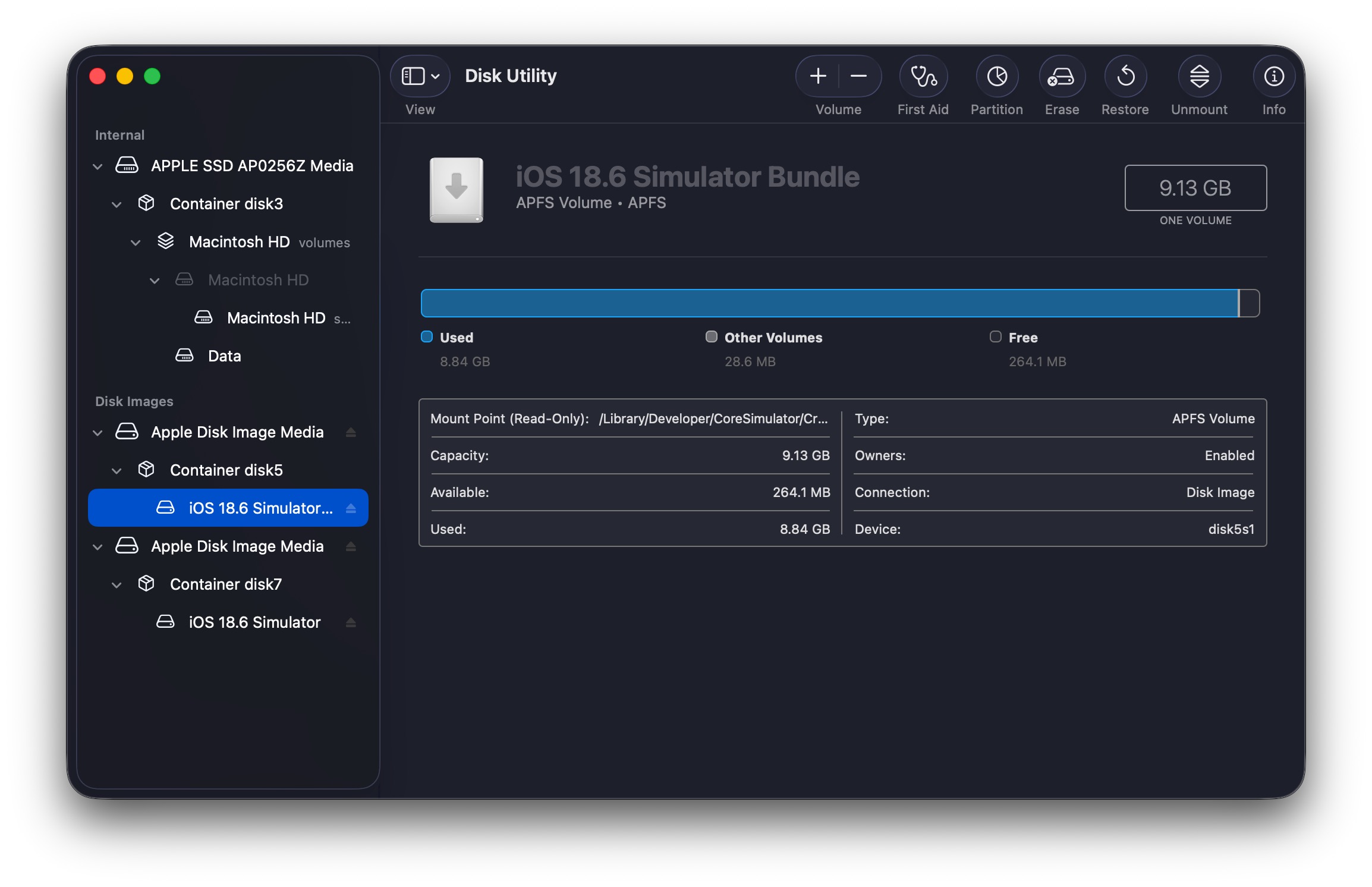
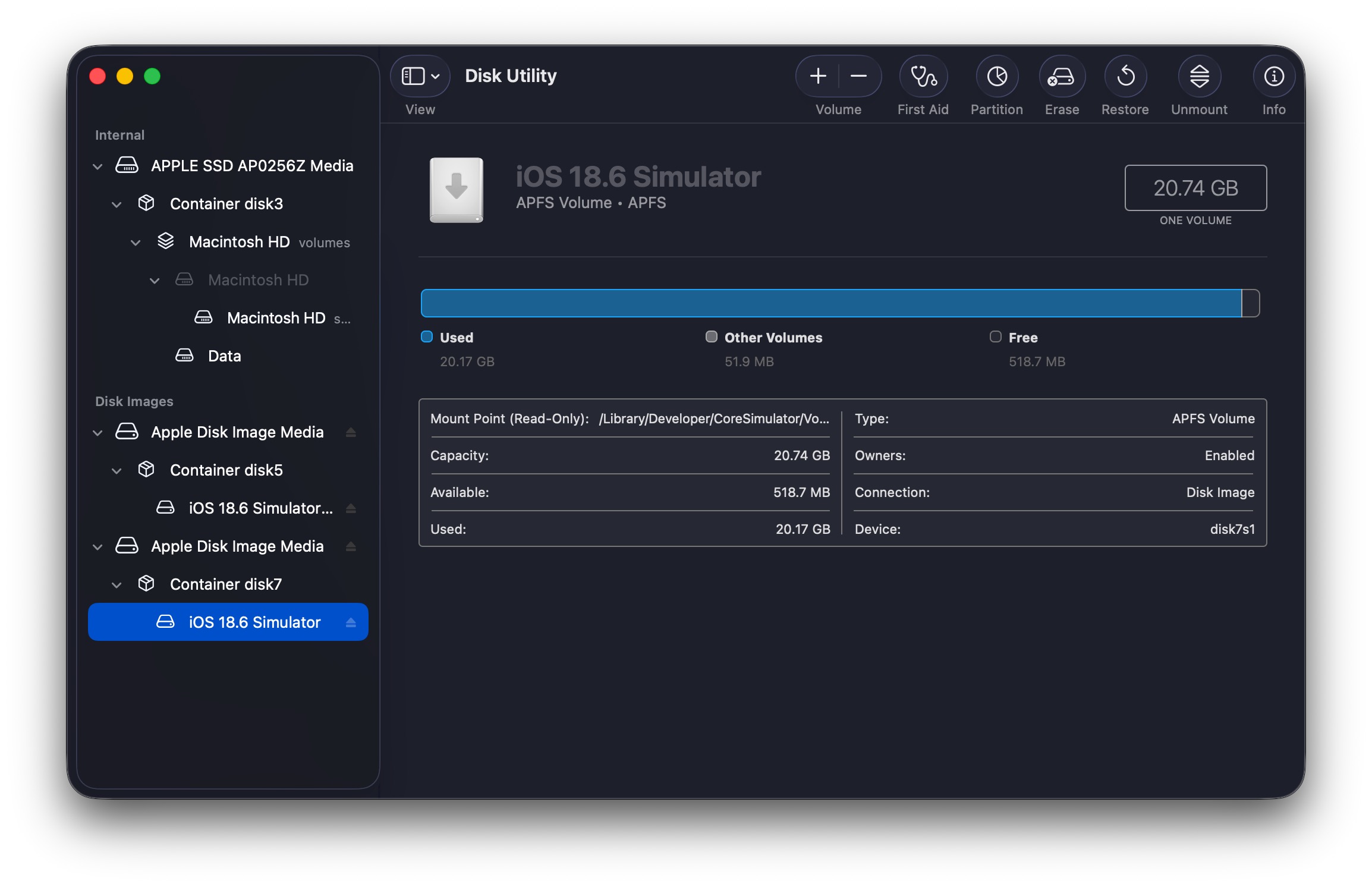
- Screenshots of the issue:

In the example above, it was observed that certain simulator disk images, such as disk5s1 and disk7s1, remained mounted but unresponsive. When attempting to unmount these volumes using Disk Utility, it always prompted saying the volume was in use, even after quitting Xcode and all related processes (the CoreSimulator related processes always reappeared after being killed).
Solution to Restore Recently Deleted Albums from iCloud Photos Library
Issue Description
During the Beta testing of the new iPadOS 26, I accidentally deleted all albums in my iCloud Photos Library on my iPad, which then synced the deletion to my other Apple devices. This resulted in the loss of all my photo albums, although the photos themselves remained intact in the “All Photos” section.
Solutions
1. Find the Deleted Albums in the Photos.sqlite Database
Find the Photos.sqlite database file in the Photos Library package. The path to the database file is as follows:
Visual Studio Code C/C++ Extension Setup on M1 Mac
Prerequisites
-
Visual Studio Code extension
ms-vscode.cpptools -
Xcode Command-line Tools / Xcode IDE
- To install Xcode Command-line Tools:
xcode-select --install - To install Xcode IDE:
mas install Xcode
- To install Xcode Command-line Tools:
Test Environment
-
Visual Studio Code 1.54.3 (Universal)
- Commit: 2b9aebd5354a3629c3aba0a5f5df49f43d6689f8
- Extension: ms-vscode.cpptools v1.2.2
-
macOS 11.2.3
$ uname -v Darwin Kernel Version 20.3.0: Thu Jan 21 00:06:51 PST 2021; root:xnu-7195.81.3~1/RELEASE_ARM64_T8101 -
Xcode 12.4 (12D4e)
$ clang --version Apple clang version 12.0.0 (clang-1200.0.32.29) Target: arm64-apple-darwin20.3.0 Thread model: posix InstalledDir: /Applications/Xcode.app/Contents/Developer/Toolchains/XcodeDefault.xctoolchain/usr/bin
Setup
Modify the settings.json in Visual Studio Code as shown below
iWork 版本管理文件清理(HFS+ Only)
13/06/2018 更新
如今在 APFS 下,Apple 似乎已经弃用了这套版本管理逻辑,所以版本管理也不再臃肿。
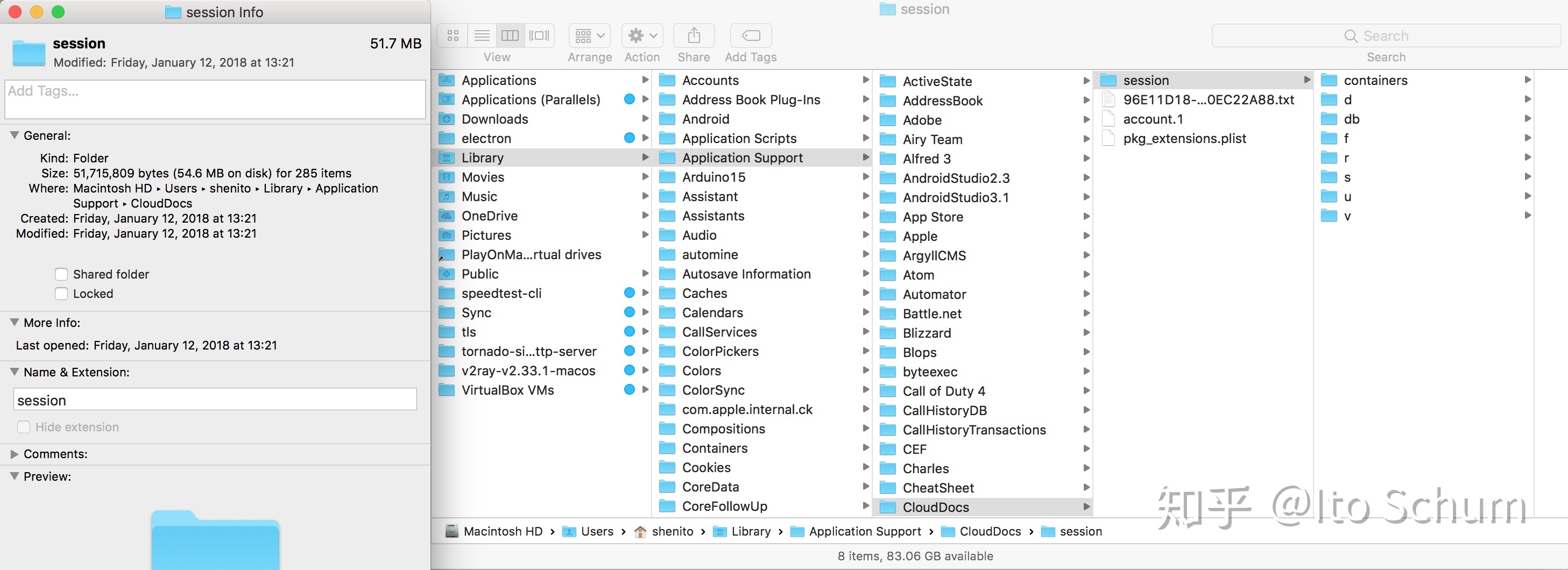
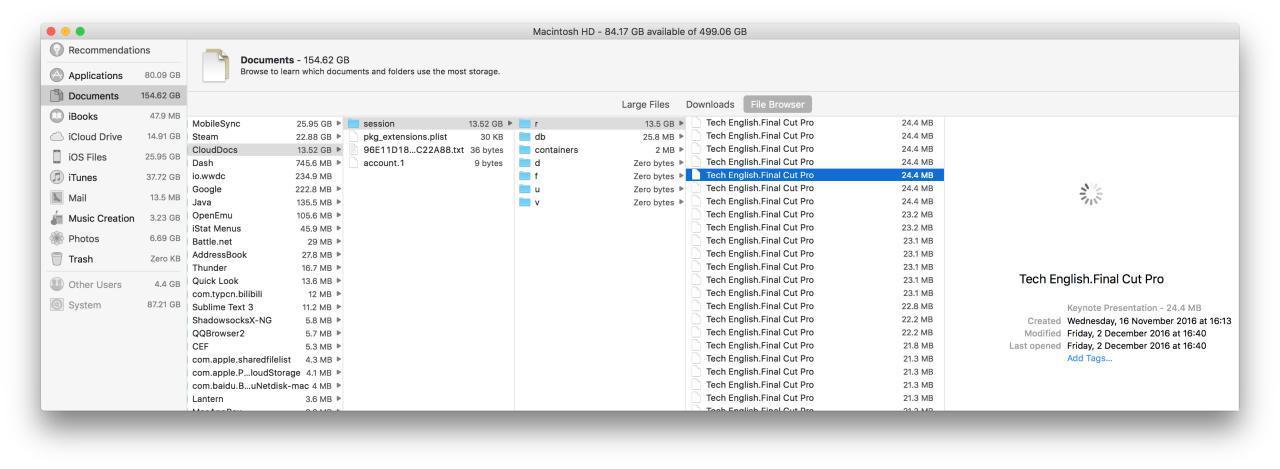
今天打开 About This Mac > Storage > Manage > Review Files > File Browser, 突然发现了 ~/Library/Application Support/CloudDocs/session/r 目录下大量的 iWork 版本管理文件,而且一看容量有 13.5GB(如下图)。
这样来看 iWork 文件华丽的版本管理背后并不光彩,Apple 没有选择增量备份,而是简单粗暴地用副本来完成类似 Time Machine 的版本管理(如封面图)。
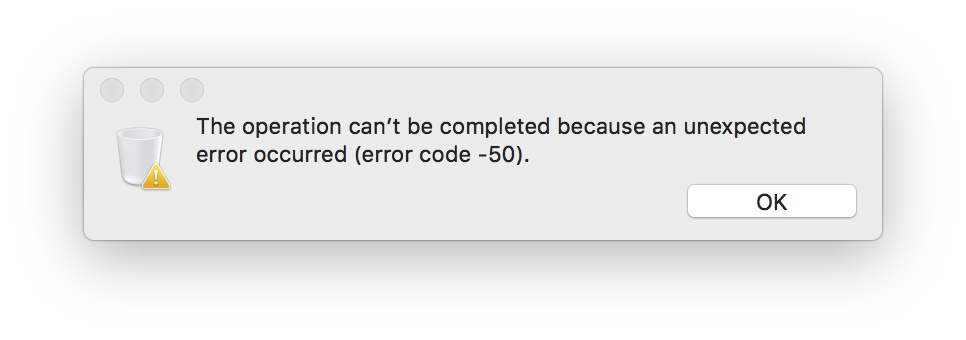
之后不论是 File Browser 还是 Finder 都无法删除这些 History Edition 文件(如下图)。
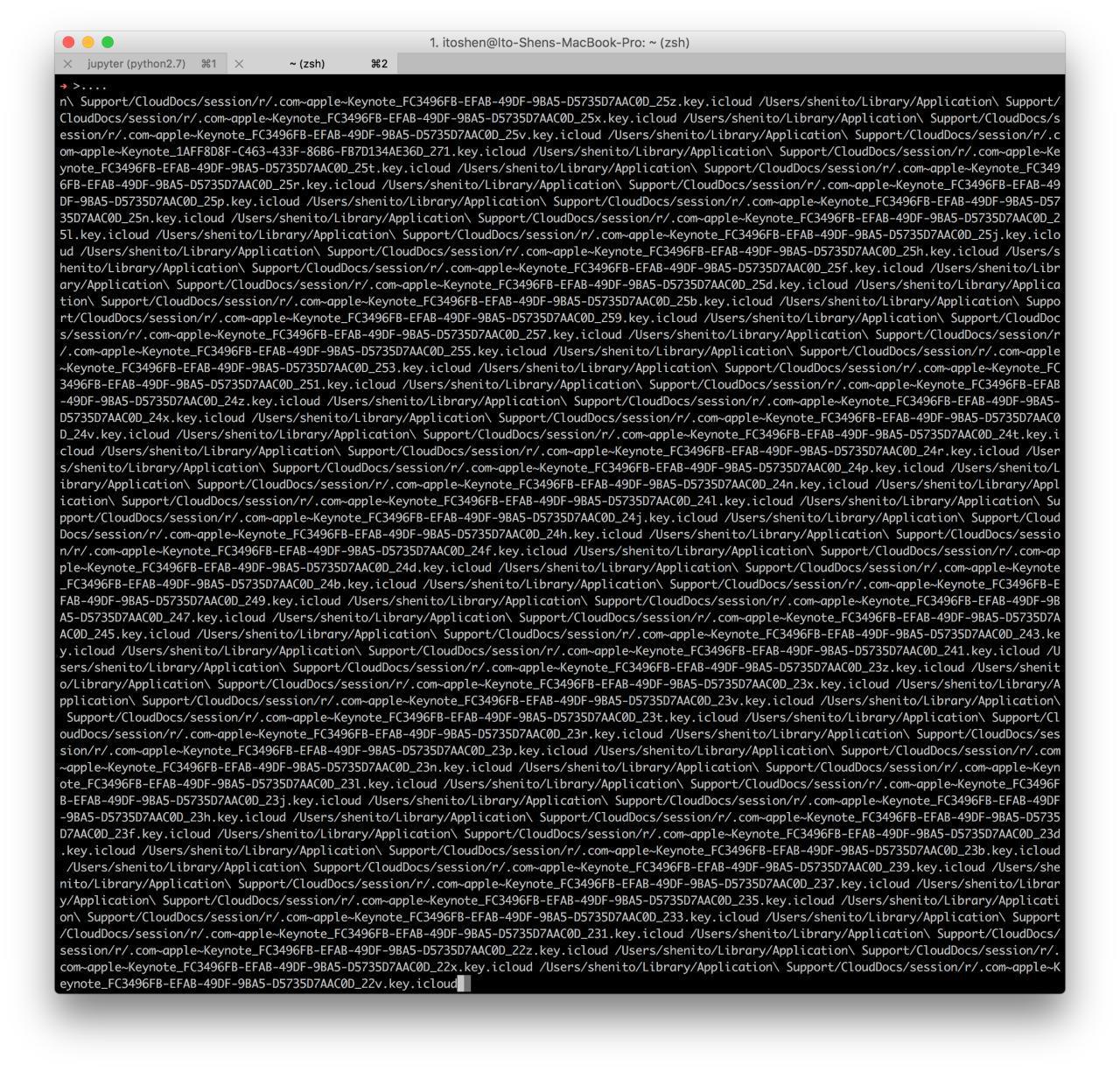
无奈只好用 rm 命令再把文件拖入 Terminal 强删(如下图)。
另外不知为什么此目录下的文件虽然不是隐藏文件,但在 Terminal 中是不可见的,需 ls -a / -al(如下图)。
remove 完较大的 Keynote History Version 文件之后,算是清理出了不少硬盘空间,可能这就是所谓的 Purgeable 文件吧(如下图)。
Unlock Mac over Apple Watch
本人在北京时间 9 月 21 日更新了 watchOS 3 与 macOS 10.12 ,尝试使用 Apple Watch 解锁 Mac 的新特性,遇到了一些问题,在此记录。
Sept. 21st, I updated my devices to watchOS 3 and macOS 10.12, trying Apple Watch’s new feature unlocking the Mac. And there were some matters occurred, which was the reason why I logged them here.
“系统偏好设置”内“安全性与隐私”设置中可以找到“允许 Apple Watch 解锁 Mac ”的勾选项,但仅在满足 watchOS 3 + macOS 10.12 + 开启“双重认证”/“两步验证”的情况下会显示。