Safely Unmounting Unresponsive iOS Simulator Disk Images on macOS
Issue Description
After use in Xcode, the iOS simulator on macOS occasionally leaves behind mounted disk images that become unresponsive and cannot be unmounted through standard methods. This can lead to cluttered disk space and potential conflicts with future simulator sessions.
- Screenshots of the issue:
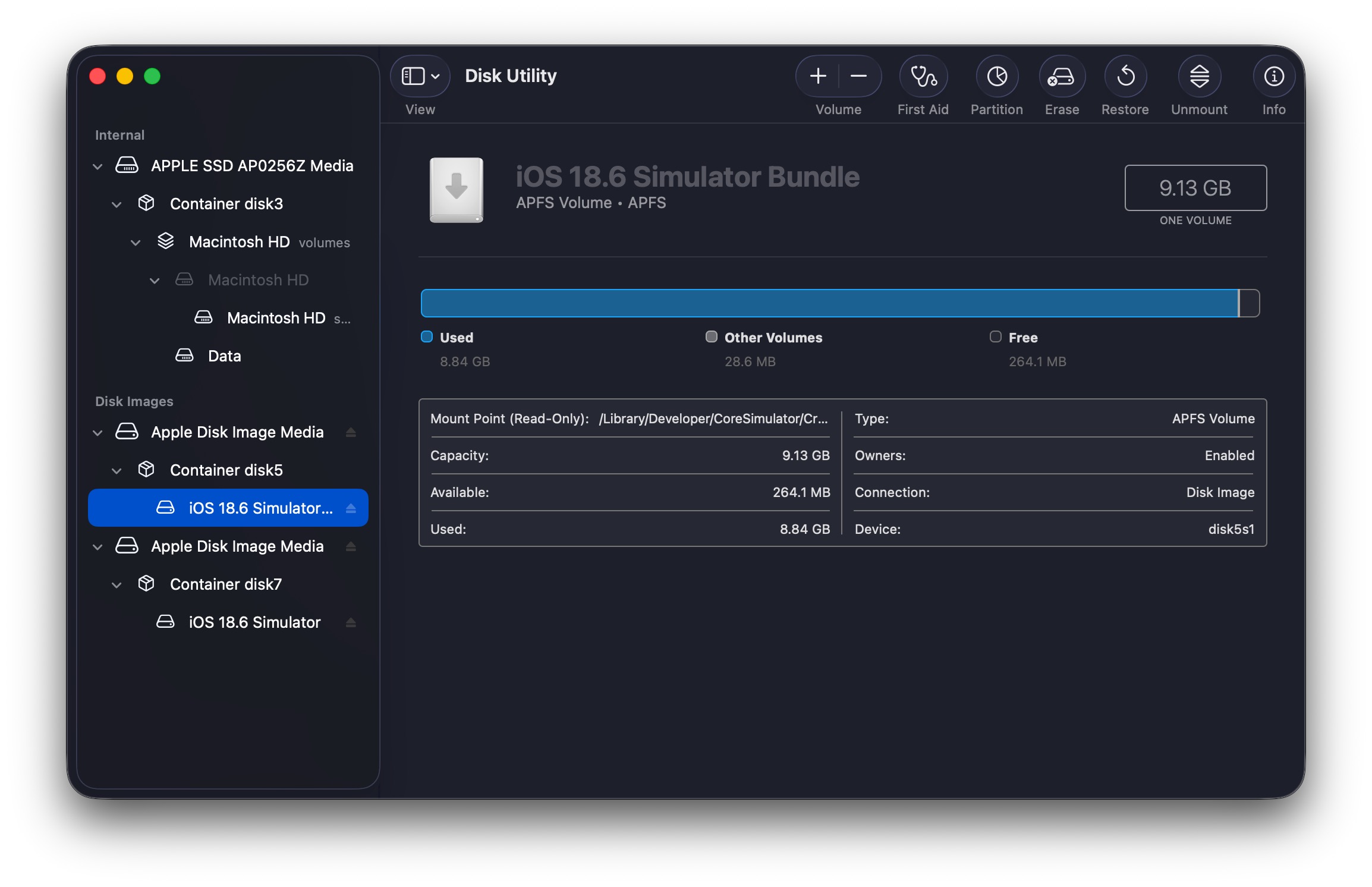
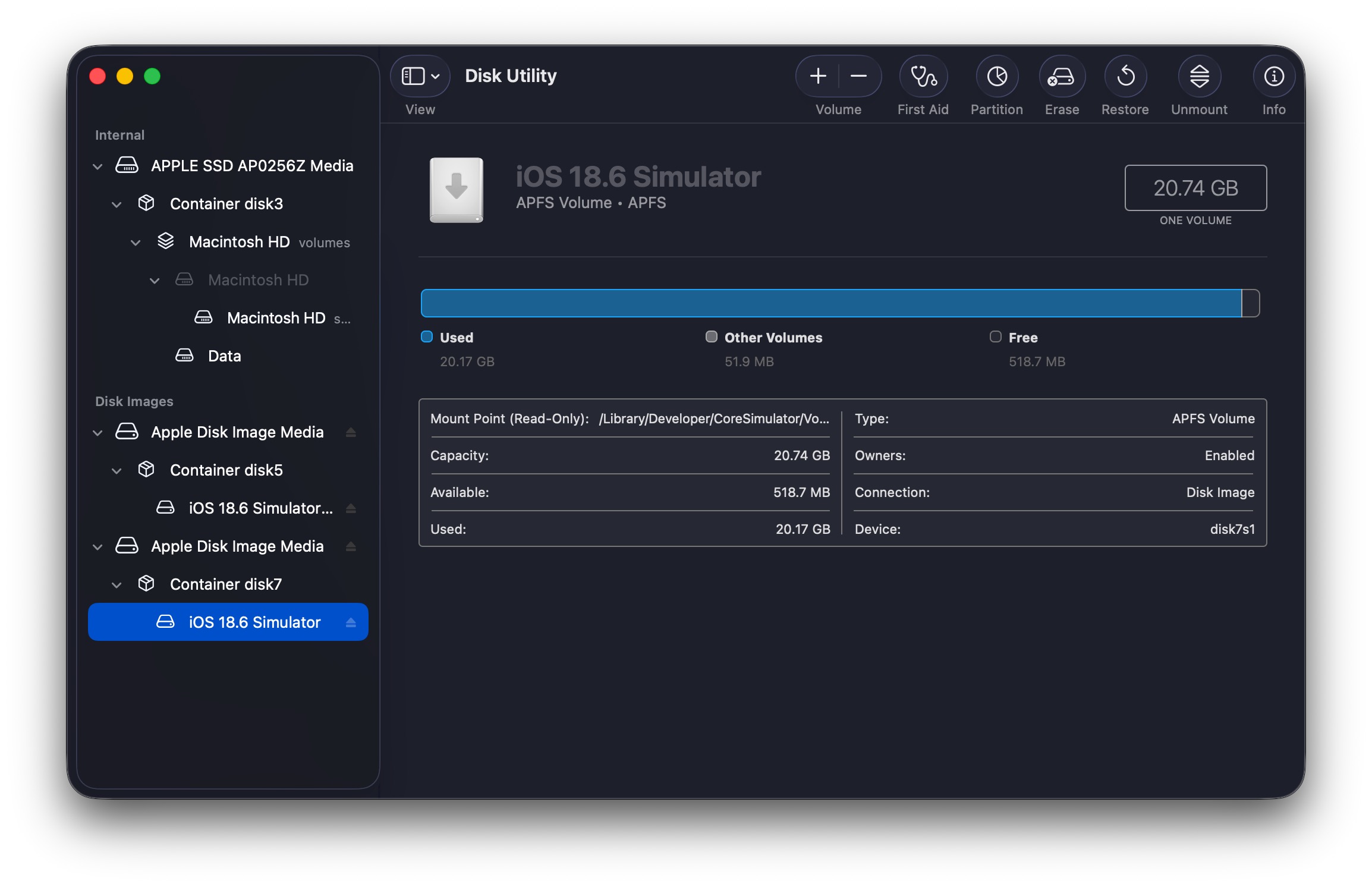
In the example above, it was observed that certain simulator disk images, such as disk5s1 and disk7s1, remained mounted but unresponsive. When attempting to unmount these volumes using Disk Utility, it always prompted saying the volume was in use, even after quitting Xcode and all related processes (the CoreSimulator related processes always reappeared after being killed).
Workaround and Solution
To safely unmount these unresponsive iOS simulator disk images, the following steps were taken:
-
Find the disk identifier of the unresponsive simulator disk images:
mount | grep -i simulatorand it may return something like:
/dev/disk5s1 on /Library/Developer/CoreSimulator/Cryptex/Images/bundle/SimRuntimeBundle-<UUID> (apfs, local, nodev, nosuid, read-only, journaled, noowners, noatime, nobrowse) /dev/disk7s1 on /Library/Developer/CoreSimulator/Volumes/iOS_22G86 (apfs, sealed, local, nodev, nosuid, read-only, journaled, noowners, noatime, nobrowse) -
Forcibly unmount the unresponsive disk image using the path found in the last step:
diskutil unmountDisk force /dev/disk5s1 diskutil unmountDisk force /dev/disk7s1 -
Remove CoreSimulator service from
launchctlto prevent it from automatically remounting the disk images:launchctl remove com.apple.CoreSimulator.CoreSimulatorService || true -
(Optional) Purge the local simulator device directory if necessary:
rm -rf ~/Library/Developer/CoreSimulator/Devices
- Screenshots of the final unmounted state (the disk image can now be safely unmounted):


References
- Gemini 3
- Man Pages - launchctl(1): https://leopard-adc.pepas.com/documentation/Darwin/Reference/ManPages/man1/launchctl.1.html